
Connecting a LobbyCentral Queue to a MS Teams Channel
Creating a Teams Channel
** Your Microsoft Teams administrator may need to complete these steps. You will need the webhook URL for the channel to use with LobbyCentral’s queue.
If you plan to use an existing channel, skip this section and go to Creating the Workflow.
- Open Microsoft Teams
- Create a new team (if desired) or right-click an existing team and select Add Channel.
- Team members should be the same group of users in LobbyCentral that have access to the queue. It is not advised to use a team that contains individuals that do not use LobbyCentral.
- To further restrict access to announcements, create Teams that only include members with access to the queue. Example: Customer Service Team and Lending Team.
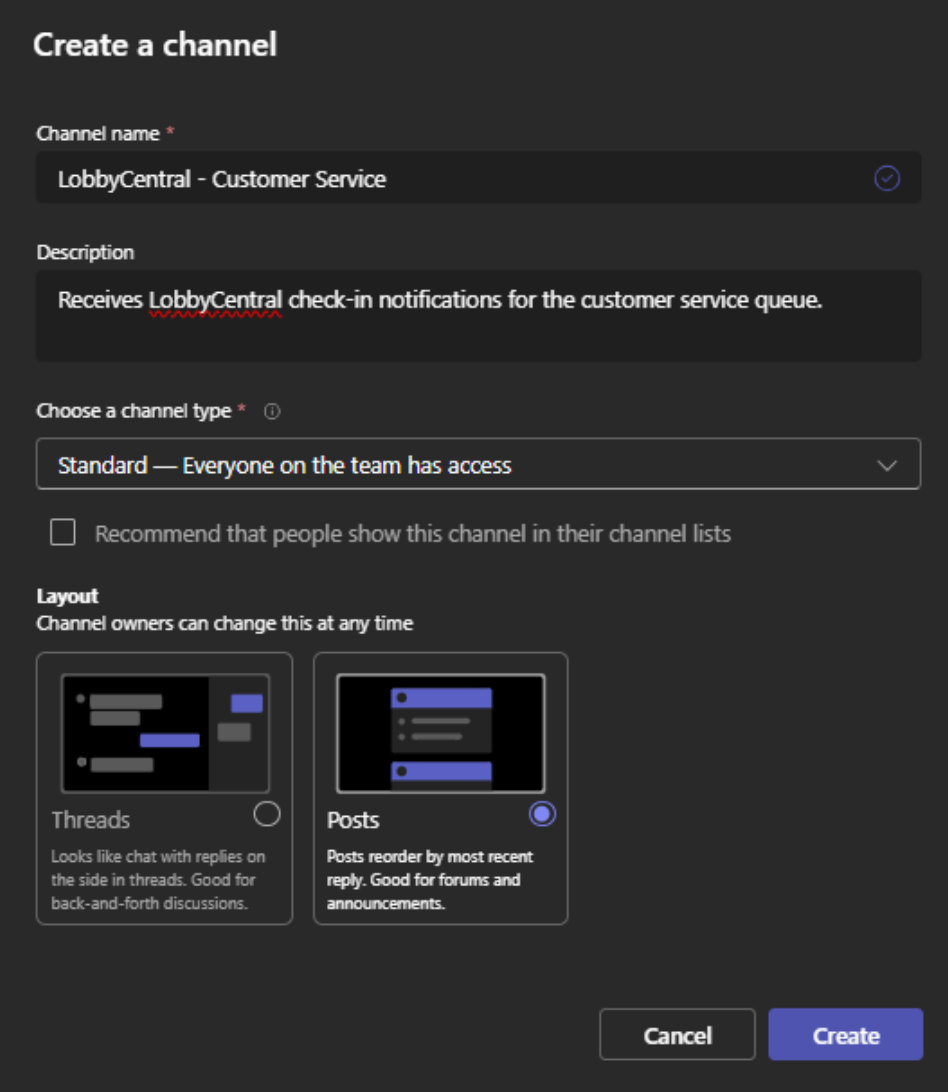
- Type in a channel name. To help identify the channel purpose, it is recommended to use the format “LobbyCentral - [queue name]”. Example: LobbyCentral – Customer Service
- Set the Channel Type to Standard if you want all team members to have access. Alternatively, you can select Private and assign individual team members. This is useful if you want to limit access to users that work the queue.
- Set the Layout to Posts.
- Save the channel.
Creating the Workflow
- Right-click the channel name and select Workflow.
- In the search field, type ‘webhook’.
- Select the action “Send webhook alerts to a channel."
- Log into LobbyCentral and go to Tools->Administration
- In the left menu, click Queues.
- Find the queue to link and click Modify.
- Paste the webhook URL into Teams Channel URL field.

-
4. Leave the default parameters and click Save.
5. Click on the workflow that was just created and click Copy webhook Lin.
6. If you are the Teams administrator, send this URL to the LobbyCentral administrator.
Linking LobbyCentral Queues
 5. Click Save.